

Appearance
Settings
Configure when your countdown ends, and how your site behaves when the timer reaches zero, including date, time, timezone, auto-unlock, and redirect behaviour.
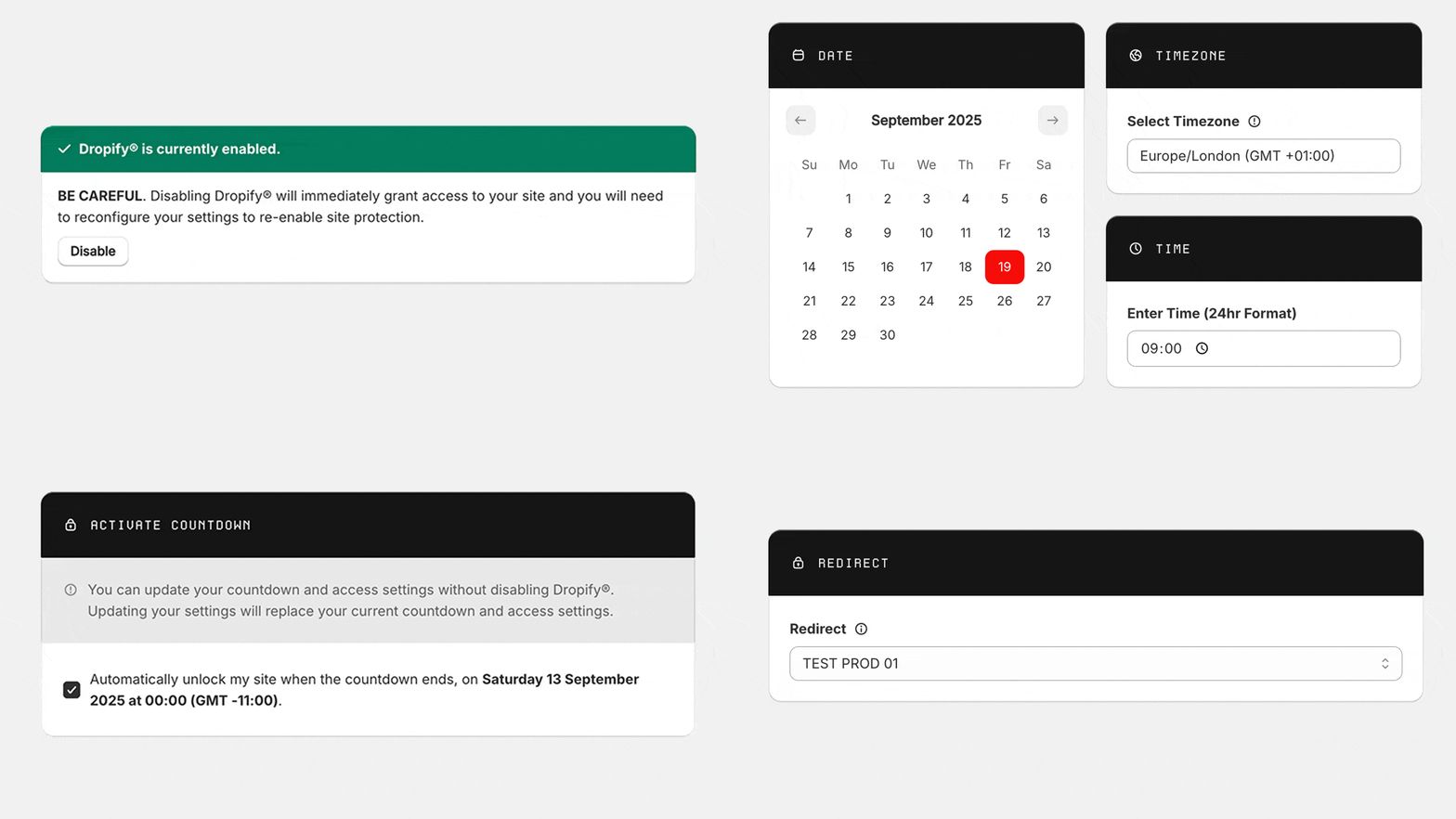
Next Drop Configuration
Date Selection
Choose the date when your countdown should end using the calendar picker:
- Past Dates: Disabled to prevent accidental configuration
- Date Format: Automatically handles your locale settings
Time Selection
Set the exact time when your countdown ends:
- Format: 24-hour format (HH:MM)
- Precision: Minute-level accuracy
- Example: 14:30 for 2:30 PM
Timezone
Required: Select the timezone for your countdown:
- Global Accuracy: Ensures customers worldwide see the correct countdown
- DST Handling: Automatically adjusts for daylight saving time
- Validation: You must select a timezone before saving settings
Site Access
Automatic Unlock
Configure what happens when the countdown reaches zero:
- Automatic (Checked): Remove protection and restore normal site access automatically
- Manual (Unchecked): Keep protection active after countdown ends (requires manual disabling)
When automatic unlock is enabled, you'll see a confirmation message showing your exact unlock schedule:
"Automatically unlock my site when the countdown ends, on Friday 15 November 2026 at 14:30 (GMT +00:00)"
Redirect Configuration
When automatic unlock is enabled, choose where customers are redirected:
- Home: Redirect to your store's homepage
- Collections: Redirect to a specific collection page
- Products: Redirect to a specific product page
- Pages: Redirect to a custom page
Only active collections and products appear in the dropdown options.
Activation
Lock Site + Activate
When Dropify® is disabled, this button will:
- Immediately activate site protection with your countdown overlay
- Display your countdown page to all visitors instead of normal site content
- Completely block all normal page content from loading (not bypassable by users)
- Begin collecting customer data through your form
Update Settings
When Dropify® is already active, this button updates your configuration without disrupting the current protection status.